
Enhanced Graphics Evolution v1.0 1.61 ETS2
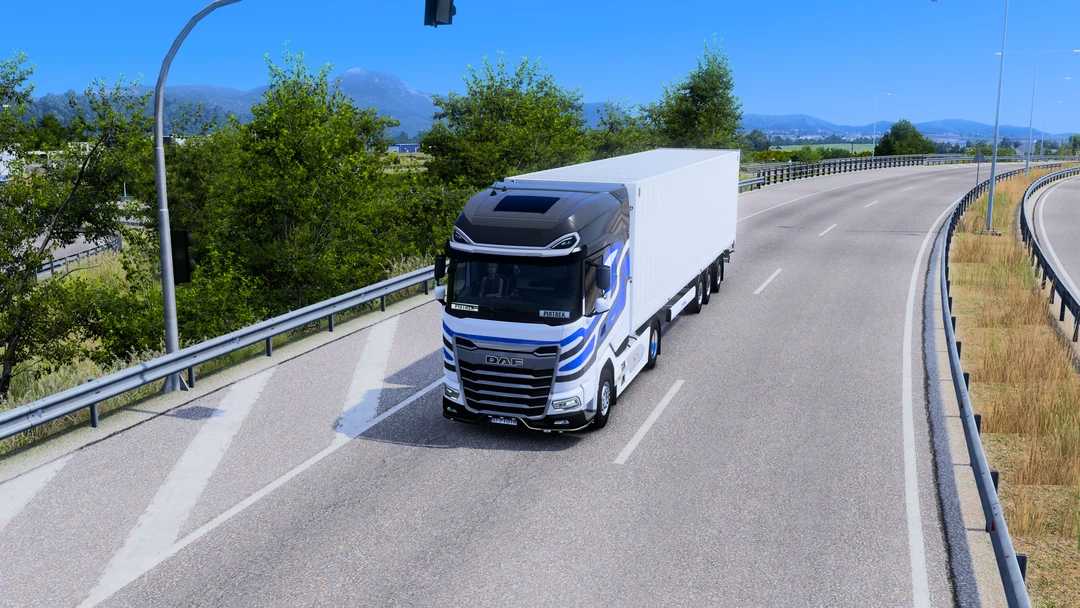

Enhanced Graphics Evolution v1.0 1.61 ETS2
What does the plugin offer?
Lighting and shadows
Colours and overall image appearance
Bloom — a soft glow around bright elements
Vehicle and wet-road reflections
Raindrop impacts on wet ground
Detailed windscreen rain controls
Vegetation controls
NVIDIA DLAA — anti-aliasing
Game render scale
Installation — step by step
Close the game and extract the downloaded plugin package.
Open your ETS2 or ATS installation folder, then navigate to bin\win_x64\plugins. Create the plugins folder if it does not exist.
Copy ege.dll, ege.ini and the entire EGE folder into it. The ege.dll file and EGE folder should sit directly beside each other, without an extra folder between them and plugins.
Launch the game in DirectX 11, 64-bit mode.
Press END during gameplay to open the panel. Choose a preset or adjust the settings, then use Save changes to keep your configuration.
If you play both games, install the plugin separately in each game’s folder.
Credits: Piotrek
How to install ETS2 mods or ATS Mods
In Euro Truck Simulator 2 it’s easy to install mods. You just need to download mod from here, copy/unzip files into: “My Documents\Euro Truck Simulator 2\mod” folder or if you play ATS please install mods to: “My Documents\American Truck Simulator\mod” folder. To unzip files you can use: WinRAR or 7zip. After that you need to activate the mods you want to use.


